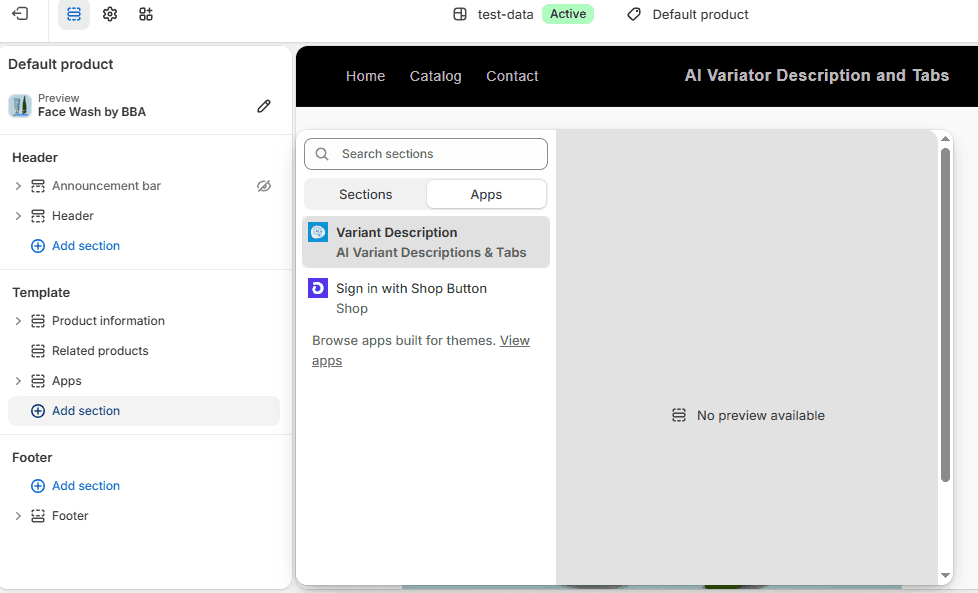
AI Variant Descriptions & Tabs App _ User Guide
Step 1: How To Configure App "General Settings
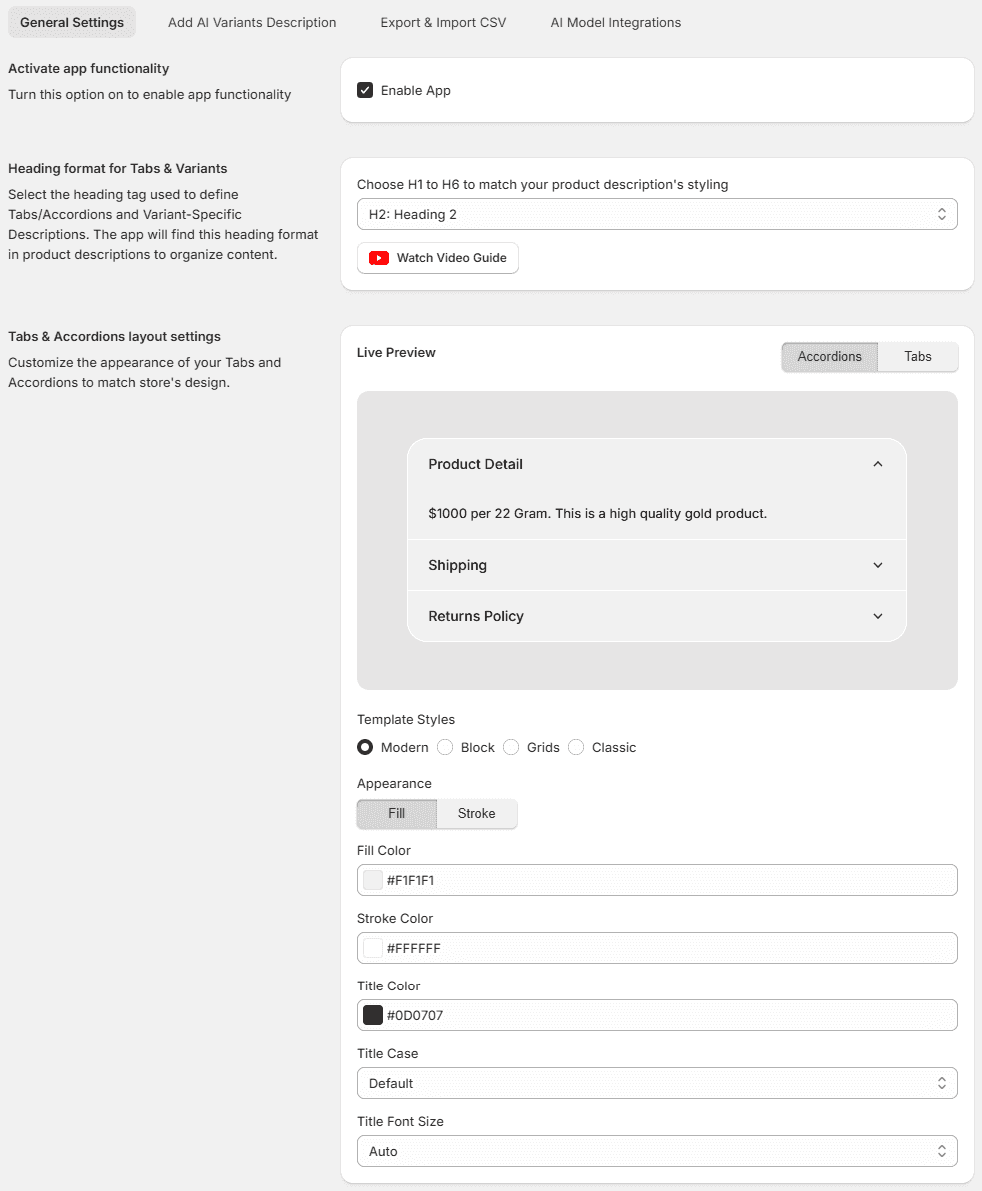
To get started with the AI Variant Description app, navigate to App Configuration from the app dashboard. The General Settings section allows you to control how product descriptions, tabs, accordions, and variant-specific content are displayed on your storefront.
- Activate App Functionality
Enable the Enable App option to activate the app on your store.
- Configure Heading Format for Tabs & Variants
Select the heading tag (H1–H6) that matches the headings used in your product descriptions.
Recommended: H2
The app scans your product description and automatically converts matching headings into Tabs, Accordions, or Variant-specific sections.
- Customize Tabs & Accordions Layout
Customize the appearance of your Tabs and Accordions to match your store design. You can choose styles, colors, title formatting, and layout options.
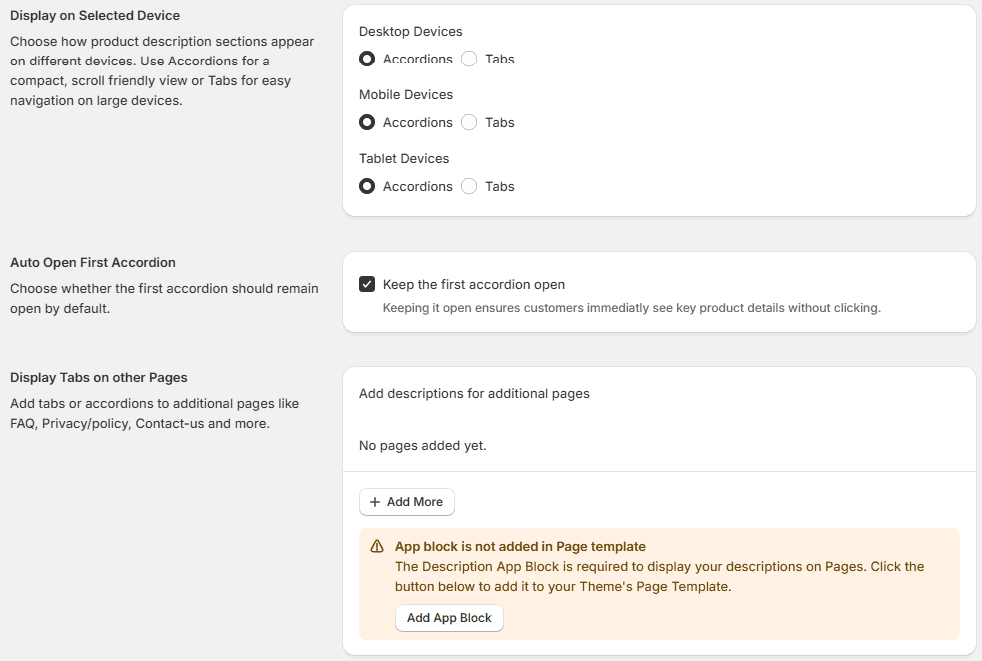
- Display on Selected Devices
Choose whether product description sections appear as Tabs or Accordions on:
- Desktop
- Mobile
- Tablet
You may use Tabs on desktop for easier navigation and Accordions on mobile for a cleaner scrolling experience.
- Auto Open First Accordion
Enable Keep the first accordion open if you want customers to see important product information immediately.
- Display Tabs on Other Pages
Add Tabs or Accordions to other store pages such as:
- FAQ
- Privacy Policy
- Shipping Policy
- Contact Us
Steps
- Click Add More.
- Select the page you want to enhance.
- Add or generate content for that page.
- Click Add App Block if prompted.
**Note: ** The Description App Block must be added to your theme's page template before tabs and accordions can appear on other pages.
- Save Your Settings
After completing all configurations: Click Save.
Step 2: Add AI Variant Descriptions
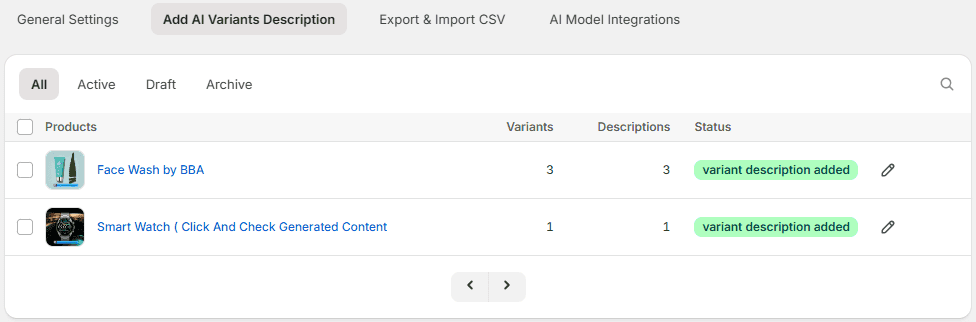
Navigate to the Add AI Variants Description tab to manage product and variant descriptions.
- View all products along with their variants, generated descriptions, and status.
- Click the Edit icon next to a product to open its description settings.
- Generate descriptions for the main product and each variant separately using AI.
- Add or update descriptions manually if needed.
- Provide specific prompts or instructions to help the AI generate accurate, product-focused content.
Step 3: Export & Import CSV
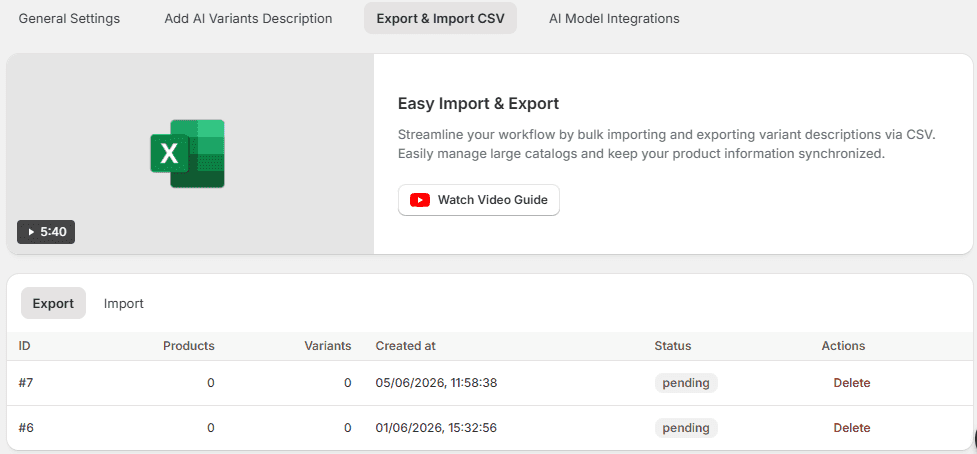
You can bulk import or export variant descriptions using a CSV file.
Import Variant Descriptions
- Go to Products → Export in Shopify Admin.
- Download the Product CSV file.
- Add your variant descriptions to the CSV.
- Open the Export & Import CSV tab in the app.
- Select Import and upload the updated CSV file.
- Check the Status section to track the import progress and confirm completion.
Export Variant Descriptions
- Open the Export & Import CSV tab.
- Select Export.
- Download the CSV file containing your variant descriptions.
Step 4: AI Model Integrations
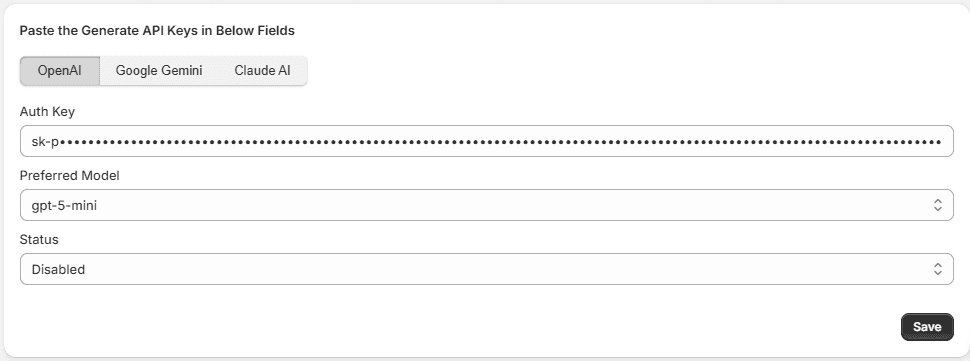
Connect your preferred AI provider to generate product and variant descriptions automatically.
Supported AI Providers
- OpenAI (ChatGPT)
- Google Gemini
- Claude (Anthropic)
Steps
- Open the AI Model Integrations tab.
- Select your preferred AI provider.
- Paste your API key into the Auth Key field.
- Choose a Preferred Model from the dropdown.
- Set the Status to Enabled.
- Click Save.
Step 5: Enable App Embed
To activate the app functionality in your theme, enable the App Embed Block.
- Go to Shopify Admin
- Online Store → Themes → Customize.
- Click the App Embeds icon on the left panel.
- Find 'Variant Description AI App Embed' and turn the toggle ON.
- Click Save.