Step 1: How To Configure App "General Settings
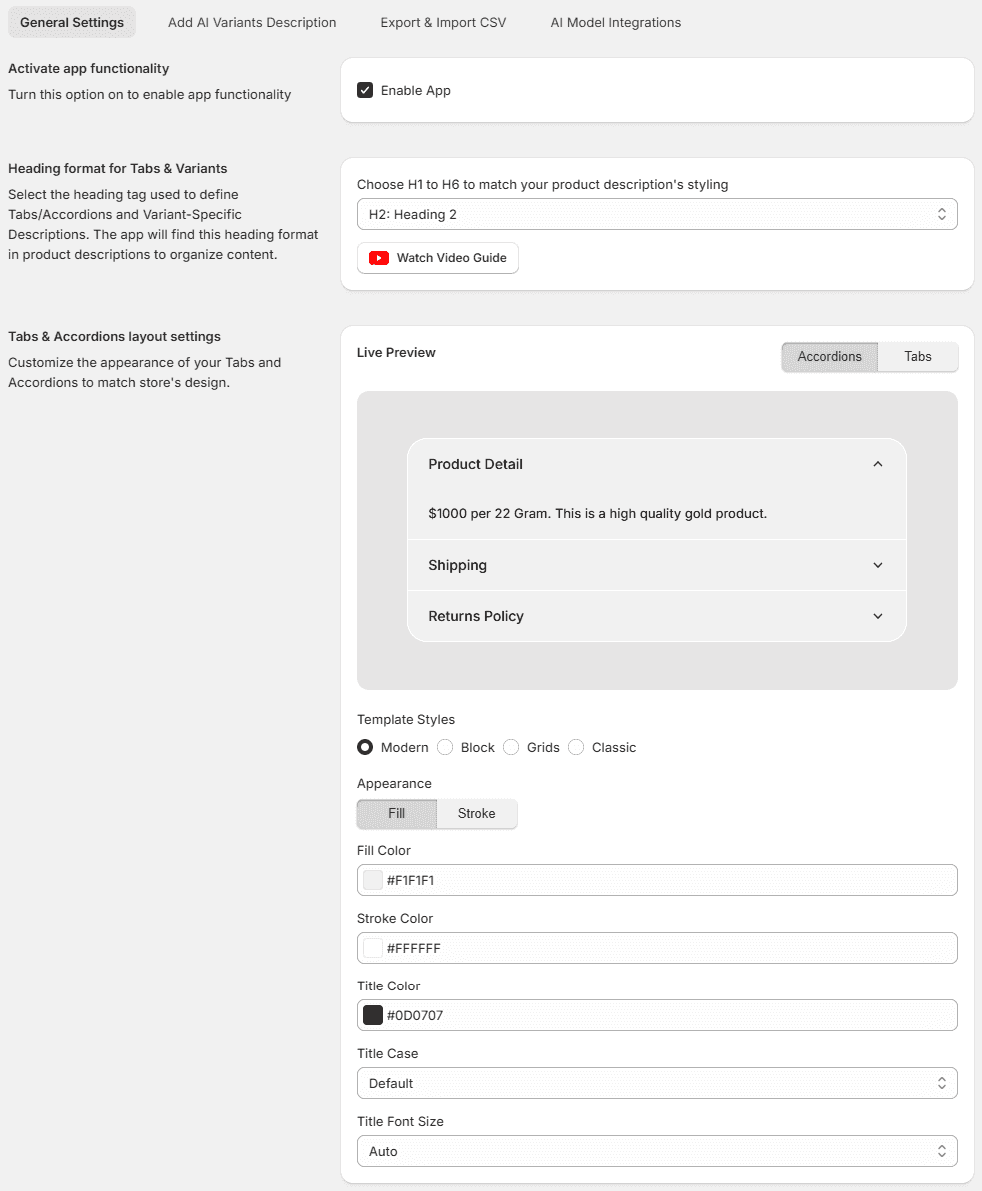
To get started with the AI Variant Description app, navigate to App Configuration from the app dashboard. The General Settings section allows you to control how product descriptions, tabs, accordions, and variant-specific content are displayed on your storefront.
- Activate App Functionality
Enable the Enable App option to activate the app on your store.
- Configure Heading Format for Tabs & Variants
Select the heading tag (H1–H6) that matches the headings used in your product descriptions.
Recommended: H2
The app scans your product description and automatically converts matching headings into Tabs, Accordions, or Variant-specific sections.
- Customize Tabs & Accordions Layout
Customize the appearance of your Tabs and Accordions to match your store design. You can choose styles, colors, title formatting, and layout options.
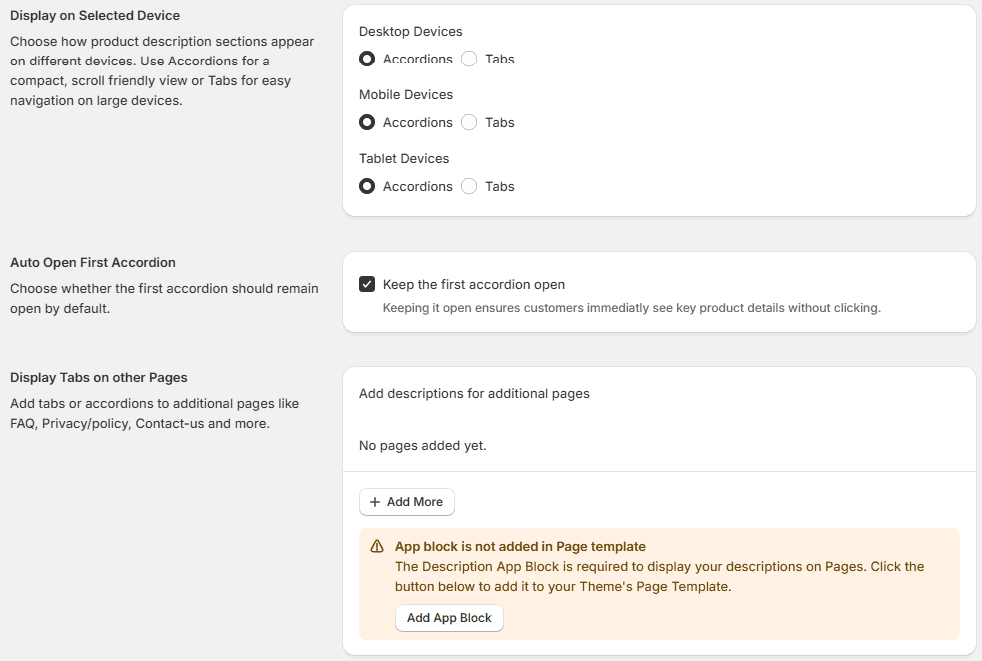
- Display on Selected Devices
Choose whether product description sections appear as Tabs or Accordions on:
- Desktop
- Mobile
- Tablet
You may use Tabs on desktop for easier navigation and Accordions on mobile for a cleaner scrolling experience.
- Auto Open First Accordion
Enable Keep the first accordion open if you want customers to see important product information immediately.
- Display Tabs on Other Pages
Add Tabs or Accordions to other store pages such as:
- FAQ
- Privacy Policy
- Shipping Policy
- Contact Us
Steps
- Click Add More.
- Select the page you want to enhance.
- Add or generate content for that page.
- Click Add App Block if prompted.
**Note: ** The Description App Block must be added to your theme's page template before tabs and accordions can appear on other pages.
- Save Your Settings
After completing all configurations: Click Save.