Digital Downloads App – User Guide
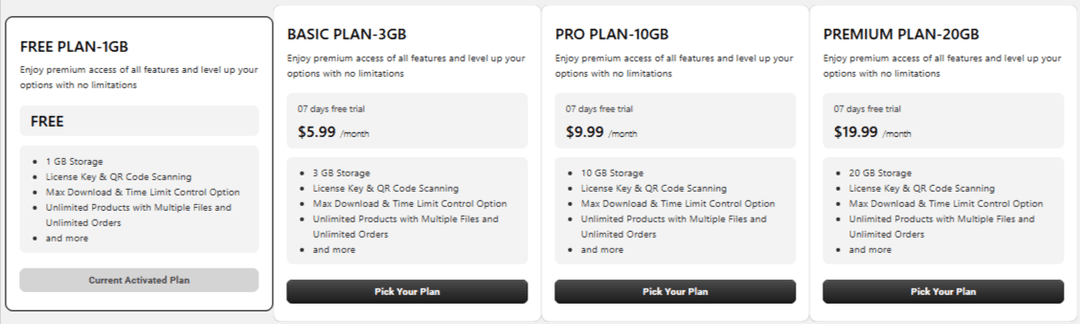
Step 1: Select Plan
After installing the app, choose a plan based on your storage needs.
Step 2: Configure App Settings
The Configuration Settings section allows you to control how the Digital Downloads app appears and functions on your store. From here, you can enable or disable the app, customize download page headings, modify button styles, and adjust icon colors to match your store branding.
-
Activate App Enabled – Customers can access and download their digital products. Disabled – The app functionality is turned off and download options will not be displayed.
-
Heading Text: Enter the title you want customers to see above the download section.
-
Heading Text Colour: Choose a color for the heading text to match your store design and branding.
Customize Download Button Settings
- Text: Enter the label that will appear on the download button.
- Text Colour: Select the color of the button text.
- Background Colour: Choose the background color of the download button to align with your store theme.
- Icon Settings: Customize the color of the download icon displayed alongside digital product names.
- Icon Colour: Select the icon color that best matches your store branding and design preferences.
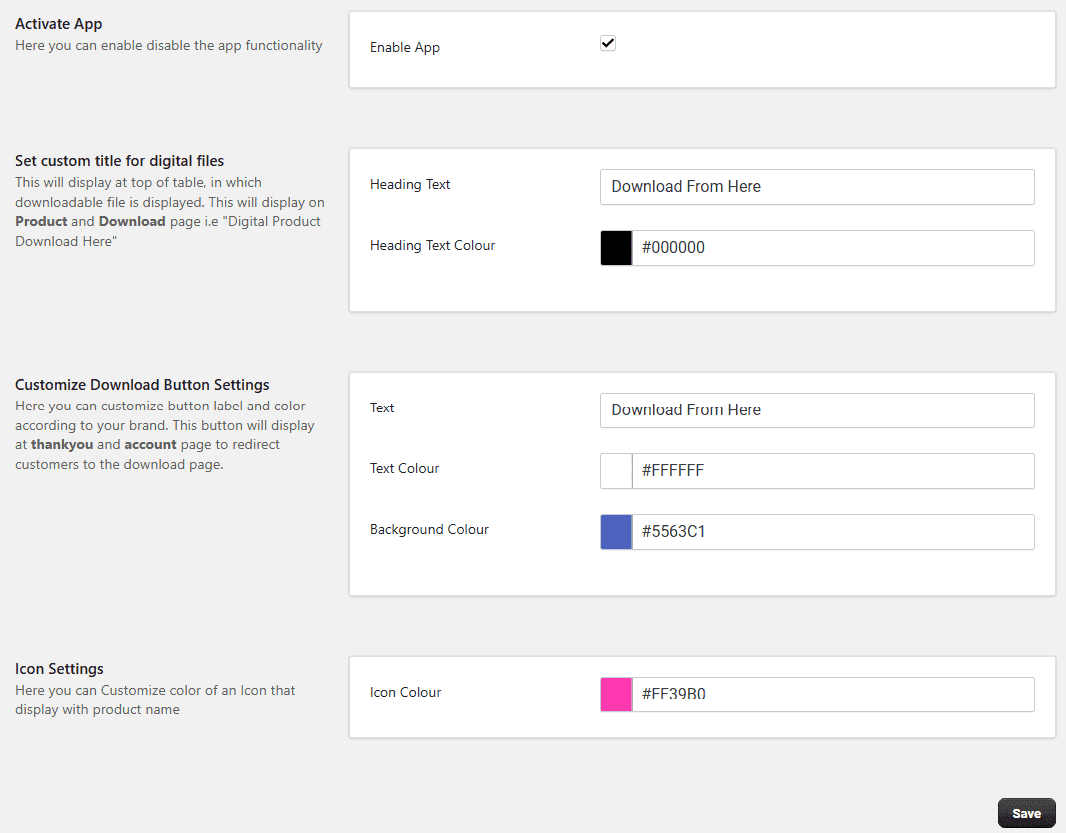
Click Save to apply changes and enable storefront functionality
Step 3: How to Create Rules
Click Add Rule and configure:
-
Enable/Disable rule
-
Rule Title: In the Enter rule title field, provide a unique and descriptive name for the rule.
-
Enable Downloadable Link After: Select when the downloadable link should become available to customers. Available Options:
Payment
Order Delivered (Fulfillment)
-
Set Download Limit: Set number of downloads
-
Set Download Expiration Period: Set expiry duration
-
Add File Password (Optional): Use the Enter Key/Password for Downloadable Files field to secure files with a password.
-
Add File Description (Optional): Provide additional information about the downloadable file.
-
Attach Downloadable Files With: Link files directly to products/variants.
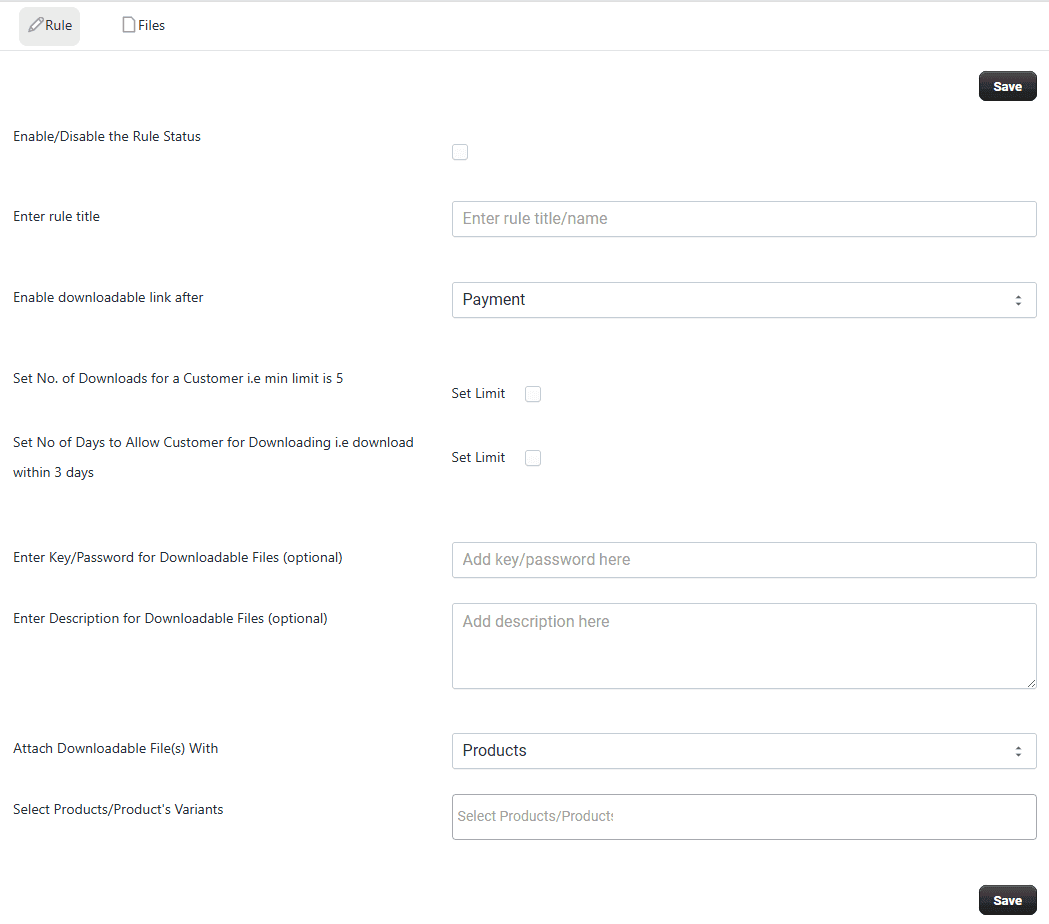
Click the Save button to create or update the rule.
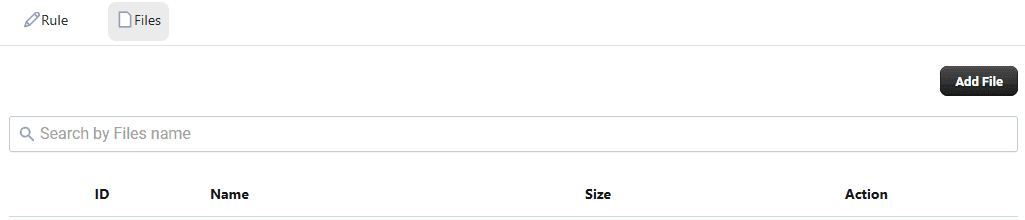
Add Files
- Click Upload Files
- Add multiple file types (PDF, Word, Images, Audio, Video, etc.)
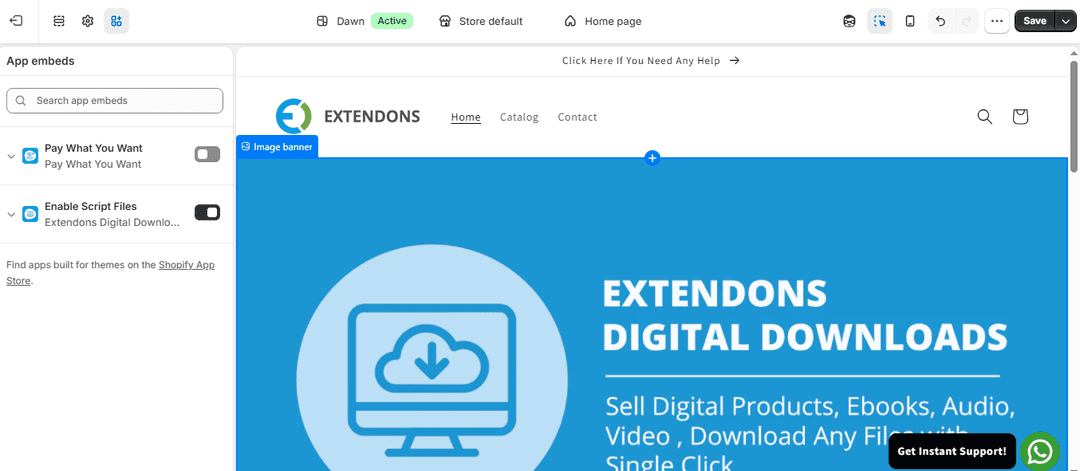
Step 4: Enable App Embed
- Go to Online Store → Themes → Customize
- Open App Embeds
- Enable the app and click Save
Setup Complete
Your digital download files are now ready to be delivered to customers automatically.