Step 1: Customize Calculator
In this step, you define how product pricing will be calculated based on measurements.
Access Settings
- Open your Shopify Admin
- Go to Apps → Price Calculator App
- Open Measurement Settings
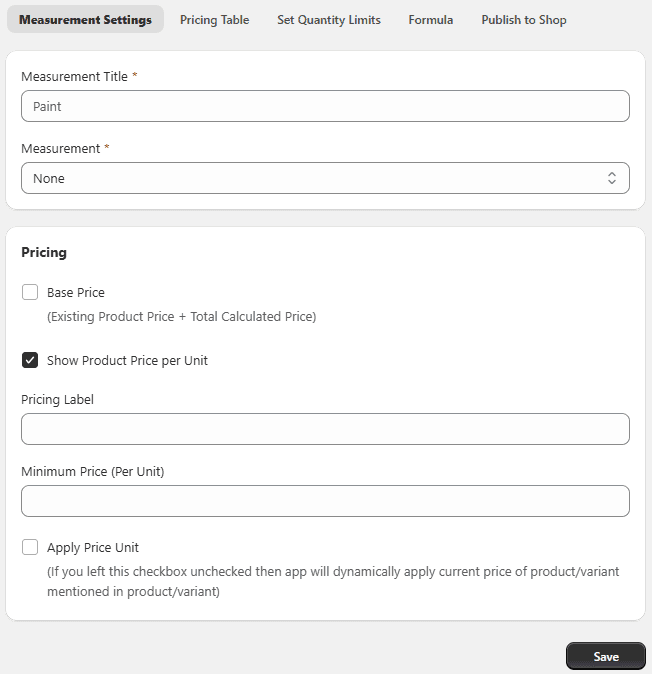
Measurement Setting
- Measurement Title: Enter a name for your pricing rule.
- Measurement Type: Choose how pricing will be calculated: Weight, Area. Length, Volume, Box Tiles, Rolls, Area (L × W), Volume (L × W × H), Room Walls, Linear Measurement (L + W),
Note: Additional fields will appear based on your selected measurement type.
Pricing:
-
Base Price: Enable to combine:
- Existing product price
- Calculated measurement price
-
Show Product Price Per Unit: Enable to display price per unit on the product page.
-
Pricing Label: Add a custom label to replace the product price display.
-
Minimum / Maximum Price (Per Unit): Set pricing limits per unit.
-
Apply Unit Price: If disabled, the app will use the product’s default price automatically.
-
Measurement Inputs: (Example: Volume L × W × H)
-
Output Unit: Select output unit (e.g., Cubic Yard)
-
Length Settings Label (e.g., Length), Unit (e.g., Yard), Min / Max values, Width Settings, Height Settings,
Status: Enable the rule to activate it.