EX Order Limits App – User Guide
This guide will help you configure cart limits, set custom messages, create product-specific rules, and activate the app on your Shopify store.
Step 1: General Settings
The General Settings section allows you to control minimum and maximum order quantities and cart amounts.
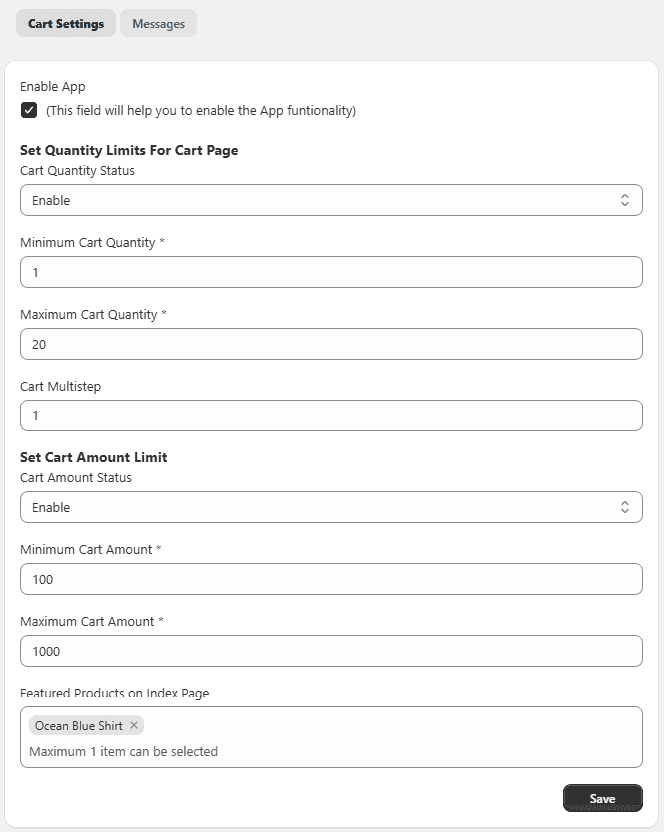
Cart Settings
- Enable App – Turn ON to activate the order limit functionality.
- Cart Quantity Settings: Control how many items customers can add to their cart.
- Minimum Cart Quantity: Set the minimum number of items required to place an order.
- Maximum Cart Quantity: Set the maximum number of items allowed in the cart.
- Cart Steps / Multiple: Restrict quantities in multiples (e.g., 2, 3).
- Cart Quantity Status: Enable or disable quantity limits.
- Cart Amount Settings: Control the total value of the cart.
- Minimum Cart Amount: Set the minimum cart value required for checkout.
- Maximum Cart Amount: Set the maximum cart value allowed.
- Cart Amount Status: Enable or disable cart amount limits.
- Featured Products on Index Page: You can select specific products to display on your home page that are subject to these specific rules.
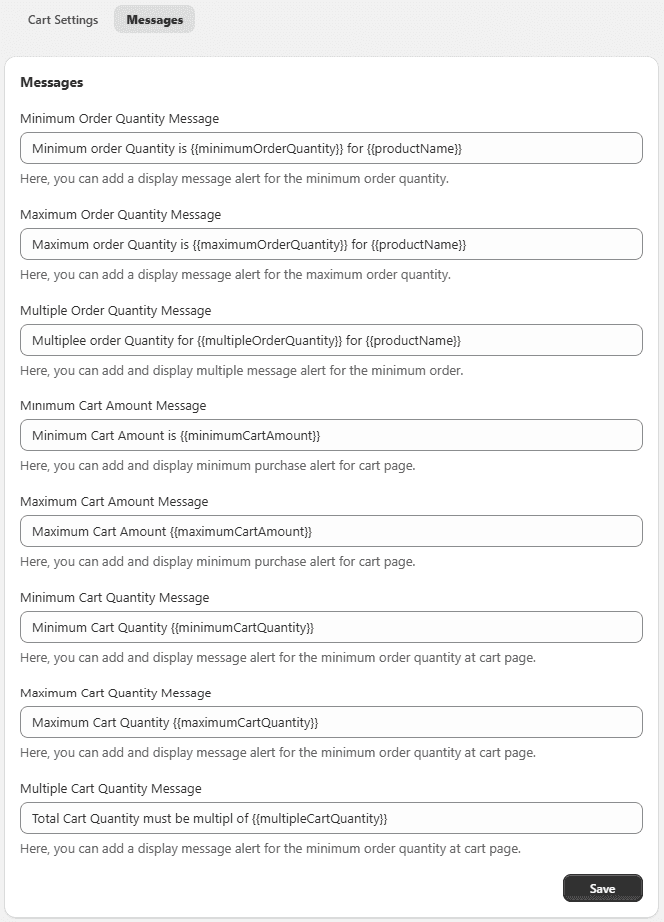
Messages Settings:
The "Messages" tab allows you to communicate directly with your customers when their cart doesn't meet your set requirements.
- Minimum/Maximum Order Quantity Message: Set the alert that appears if a customer adds too few or too many items to their order.
- Multiple Order Quantity Message: Use this to inform customers if they must purchase items in specific multiples (e.g., "Please add items in multiples of 2").
- Minimum/Maximum Cart Amount Message: Set alerts for when the total dollar value of the cart falls below your minimum or exceeds your maximum allowed spend.
- Cart Page Alerts: You will also find dedicated fields for "Minimum/Maximum Cart Quantity" and "Multiple Cart Quantity" messages specifically for the checkout/cart page.
Step 2: How to Create Rules
You can create custom rules for specific products or collections.
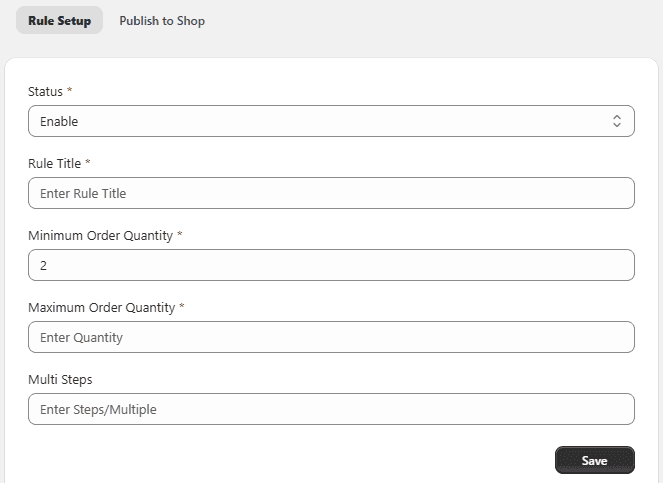
Access Rules Go to the app dashboard. Click Add Rule. Configure the rule settings below.
Rule Settings
- Rule Title – Enter a name for the rule
- Minimum Order Quantity – Set minimum quantity
- Maximum Order Quantity – Set maximum quantity
- Steps / Multiple – Restrict quantity in multiples (e.g., 2, 3)
- Status – Enable or disable the rule
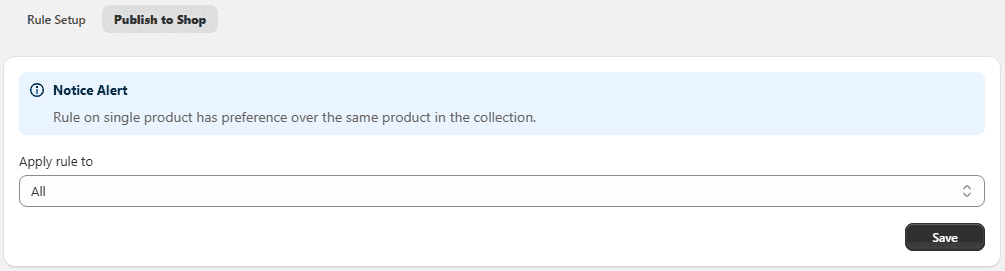
Apply Rule to Store
Choose where the rule should apply:
- Products – Select specific products (multiple selection allowed)
- Collections – Apply rule to selected collections
- Rule Category – Apply to product variants or entire collections
Note:
- Product-level rules override collection rules
- If multiple rules apply, the highest priority rule is used
Rule Priority: Set the priority of the rule.
- Lower number = higher priority
- Example: 1 = Highest Priority
Save Rule: Click Save to apply the rule.
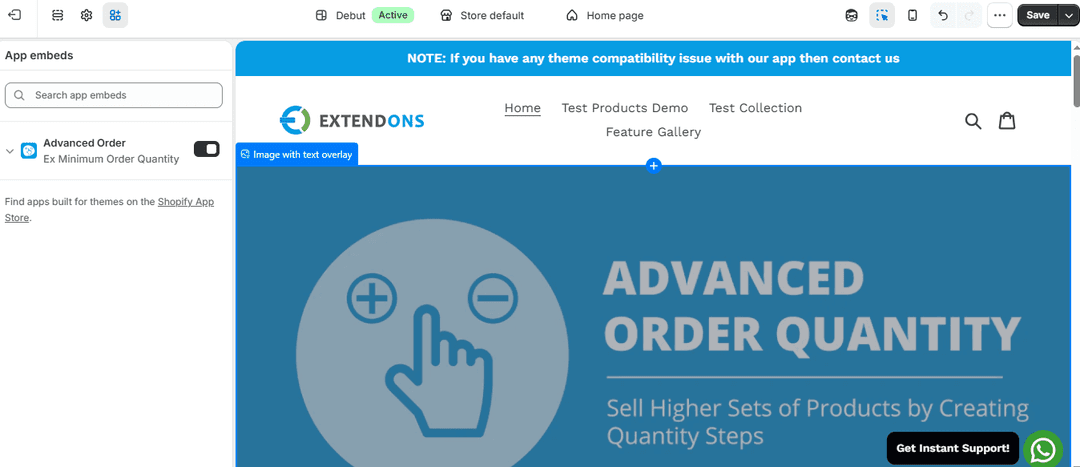
Step 3: Enable App Embed (For Shopify 2.0 Themes Only)
To apply the app on your storefront, enable it in your theme.
Steps:
- Go to Shopify Admin.
- Navigate to Online Store → Themes.
- Click Customize.
- Open Theme Settings → App Embeds.
- Find the EX Order Limits App.
- Toggle Enable ON.
- Click Save.
Note: If you are not using a Shopify 2.0 theme, do not enable this option.
Setup Complete
You have successfully:
- Configured cart quantity and amount limits
- Customized validation messages
- Created product and collection-based rules
- Enabled the app on your theme
Your store is now optimized to control order quantities and improve checkout compliance.