How to Create Rules and Manage
Set up custom rules to control precisely which products, collections, or individual variants are split on your storefront. This allows you to apply different splitting logic across your store instead of a simple sitewide setting.
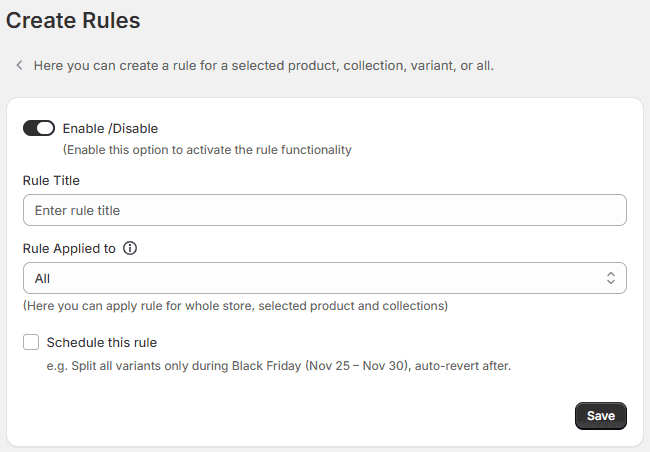
- Enable / Disable Toggle: Switch this on to activate the specific rule functionality you are configuring. If turned off, the rule will be saved but will not affect the storefront.
- Rule Title: Enter an internal name for your rule to easily manage it later in your dashboard. Example: “ sale collection ”
- Rule Applied To: Use this dropdown menu to define the scope of your custom rule. You can target your split logic by selecting one of the following options:
All: Applies the splitting rules globally to every single product and collection in your store.
Products: Targets specific individual products that you select.
Product Variant: Narrows the scope down to individual, highly specific product variants.
- Collection Level Rule: In a collection-level rule, you can create a single rule for each collection. Once you select a collection, product sorting options and multiple filter condition logic appear below along with the products.
- Custom Sorting: You can easily drag and drop variant positions within collections. You can also assign a display order using numeric values, which will be reflected at the collection level accordingly.
- Add Condition (Apply Filters): This option is available in the backend for admin convenience. It helps display selected variants from large collections and makes sorting easier.
- Show Results Filters: Admins can view 100 to 1000 variants using filter views. They can also sort results alphabetically, by price (low to high), and more.
- Schedule This Rule: You can schedule variants to appear later if they are not out of stock or are expected to be restocked soon. You can make them live automatically by selecting specific dates. For example, you can split a seasonal collection from June 1 to August 31 and automatically disable it outside that window.