WhatsApp Chat & Order App – Setup Guide
This guide will help you configure the app, add agents, customize WhatsApp buttons, and activate the app on your Shopify store.
Step 1. Configure App – General Settings
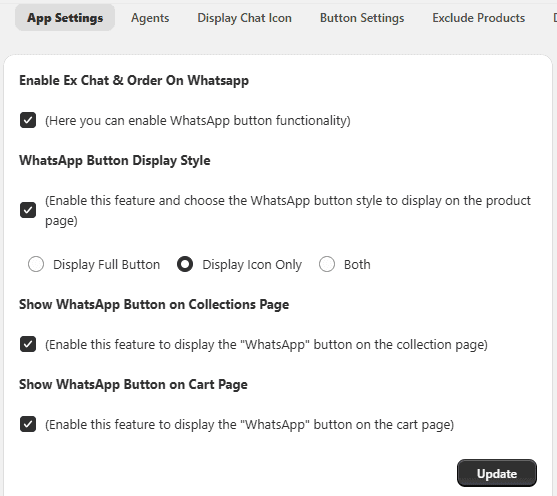
The General Settings section allows you to control how the WhatsApp button appears across your store.
Access General Settings Open your Shopify Admin → Apps → Select the WhatsApp Chat & Order App → Click on App Configuration → Configure the following options → Save.
Enable App
Turn ON to activate WhatsApp functionality on your store.
WhatsApp Button Display Style Choose how the WhatsApp button appears on the product page:
- Icon only
- Button only
- Both icon and button
Show Button on Collection Page Enable to display the WhatsApp button on collection pages.
Show Button on Cart Page Enable to display the WhatsApp button on the cart page.
Step 2. Add Agents
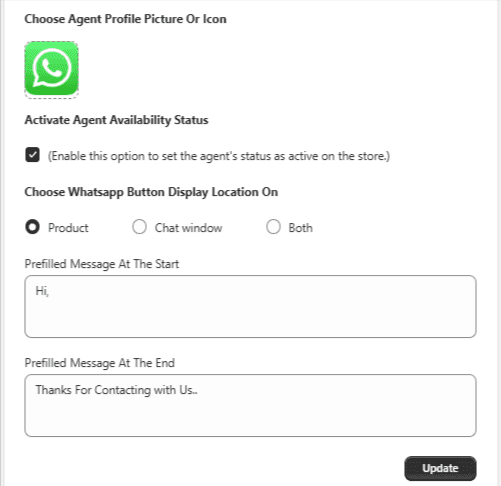
You can create agent profiles to handle customer chats and enquiries.
Steps to Add Agent:
- Go to the Agents section.
- Add the following details: Agent Name Phone Number Profile Image
- Set the display location for the WhatsApp button.
- Add a custom prefilled message.
- Enable the agent status.
- Click Save.
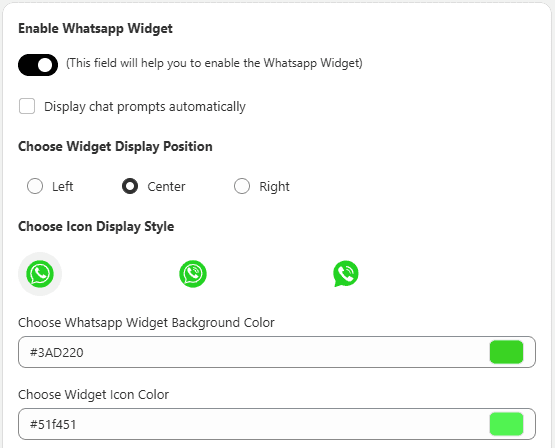
Step 3. Customize WhatsApp Chat Widget
You can configure the floating WhatsApp chat icon and chat window.
Available Options:
- Enable/Disable WhatsApp widget
- Auto display chat prompts
- Select widget position on screen
- Customize: Background color Text color Icon color
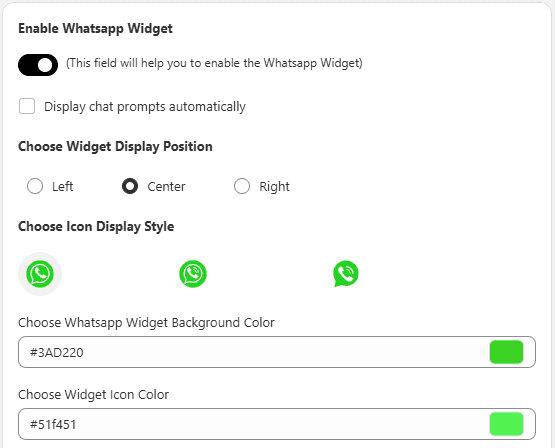
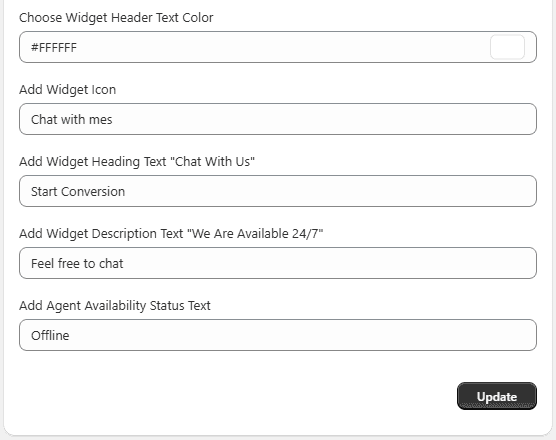 This helps match the widget with your store branding.
Step 4. Customize WhatsApp Button Settings
Customize how the WhatsApp button appears across your store.
Options Include:
- Button label text
- Button style
- Background color
- Text color
- Collection page button label
- Button shape
These settings ensure consistent branding across all pages.
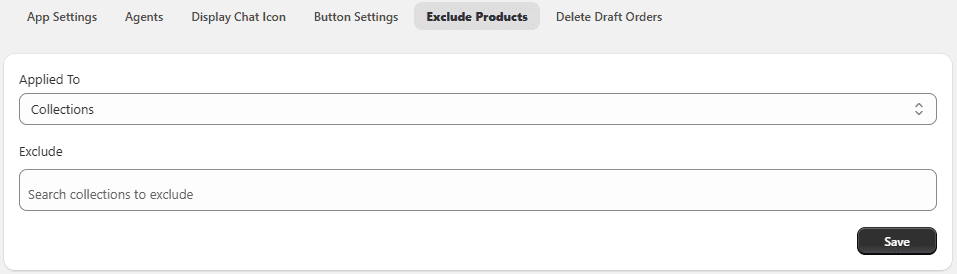
Step 5. Exclude Products / Collections
By default, the WhatsApp feature is applied to all products.
You can exclude specific items:
- Select products to exclude
- Select collections to exclude
Step 6. Delete Draft Orders
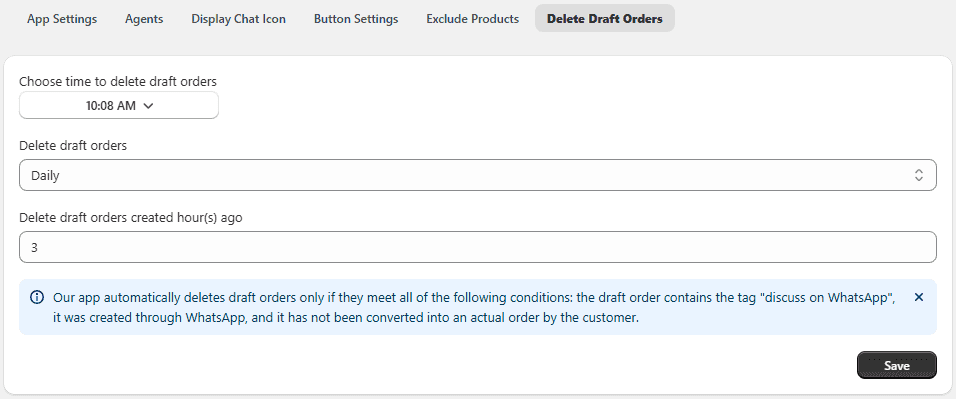
Automatically manage and clean up draft orders.
Options:
- Delete draft orders daily or weekly
- Set a specific time for deletion
- Delete orders created after a certain number of hours
7. Enable App Embed (Activate App)
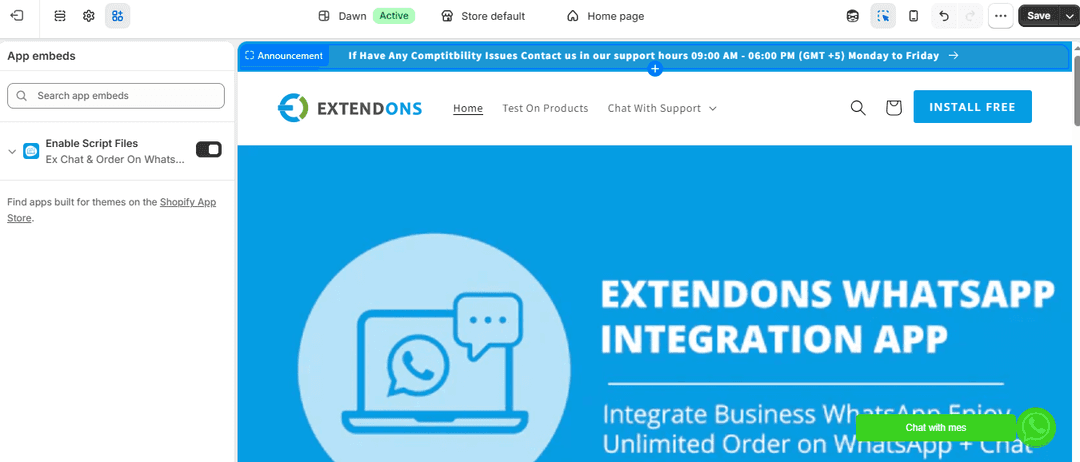
To display the WhatsApp feature on your storefront, enable the app in your theme. Steps:
- Go to Shopify Admin.
- Navigate to Online Store → Themes.
- Click Customize.
- Open Theme Settings → App Embeds.
- Find the WhatsApp Chat & Order App.
- Toggle it ON.
- Click Save.
Note: If you are not using a Shopify 2.0 theme, do not enable this option.