Add to Quote & Hide Price App
This guide will help you configure the app, customize forms, create rules, manage enquiries, and activate the app on your Shopify store.
Step 1. Configure App – General Settings
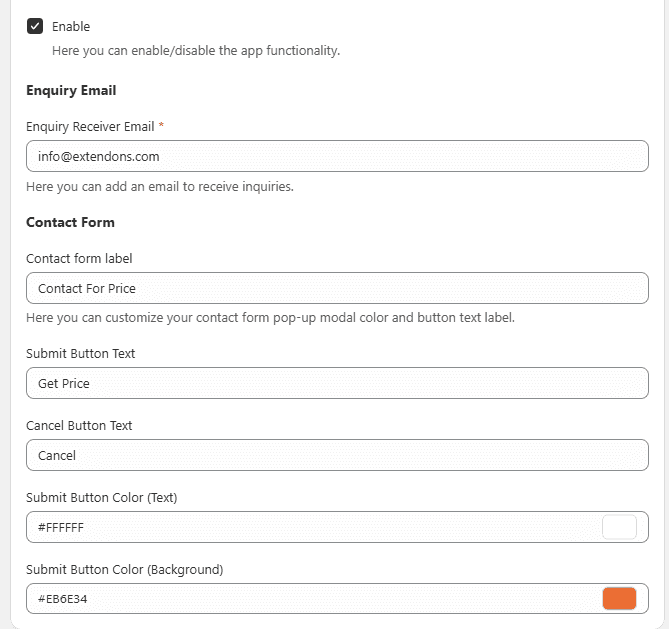
The General Settings section allows you to manage core app functionality, contact form behavior, and button styling.
Access General Settings Go to Shopify Admin → Apps → Select the Add to Quote & Hide Price App → Click on App Configuration → Configure the following options → Save.
Enable or disable the app functionality.
Enabled – Activates all app features
Disabled – App will not be visible on the storefront
Email Configuration
- Enter the email address where enquiry messages will be received.
- Example: info@example.com
Contact Form
- Customize the contact form fields and layout.
- All changes will reflect on the popup form shown to customers.
Contact Form Label
- Enter a custom label (e.g., Ask for Quote).
- This will appear as the heading of the contact form popup.
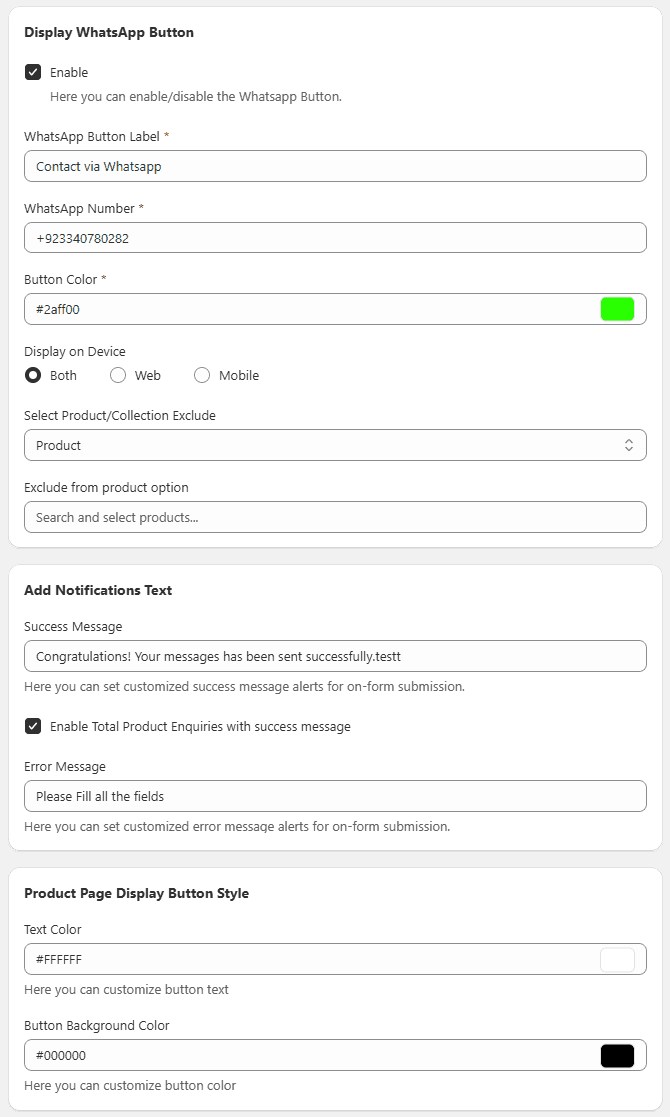
Product Page Button Style
Customize the button displayed on product pages.
- Edit button text
- Select button color
Notification Message
- Add a custom success message shown after form submission.
- Example: Message sent successfully
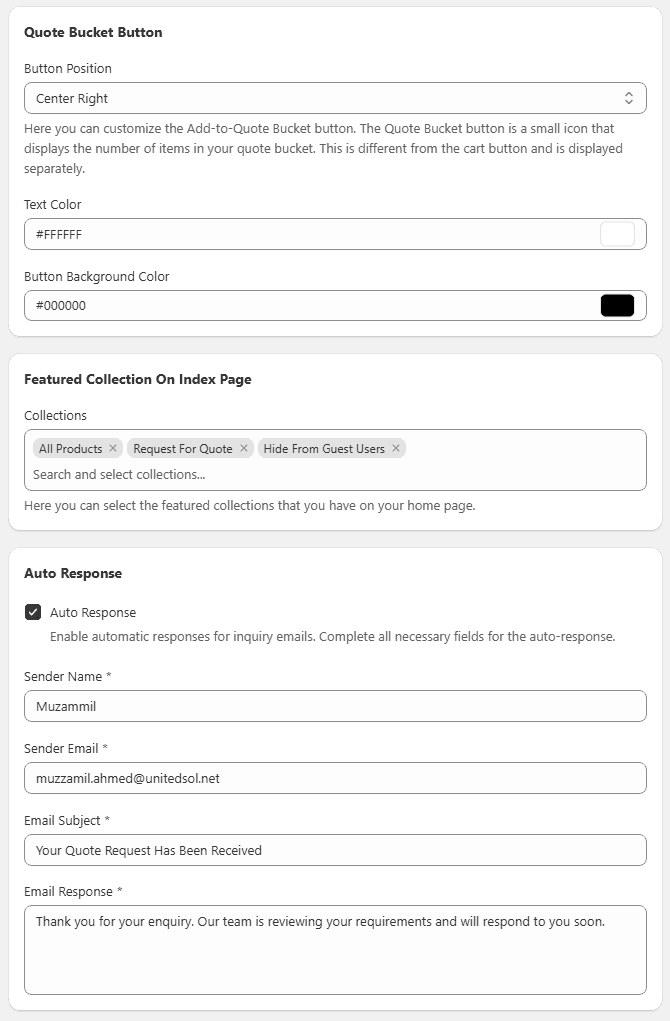
Quote Bucket Button
Displays a small icon showing the number of items added for quote.
- Works separately from the cart
- Helps users manage quote requests easily
Auto Response
Enable automatic replies for customer enquiries.
- Set sender name and email
- Customize response message
Featured Collection on Homepage
Select collections to display on the homepage.
- Helps highlight important products
- Improves visibility and engagement
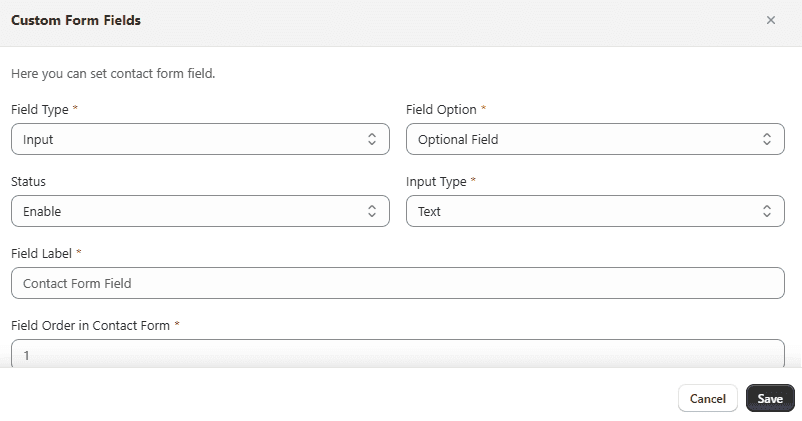
Step 2. Customize Contact / Add to Quote Form
You can fully customize the form fields based on your requirements.
Steps:
- Go to the Contact Form tab.
- Add required fields (e.g., Name, Email, Message).
- Enable or disable field visibility.
- Review all sections.
- Click Save.
Step 3. Create and Apply Rules
Rules allow you to control where prices are hidden and how they are replaced.
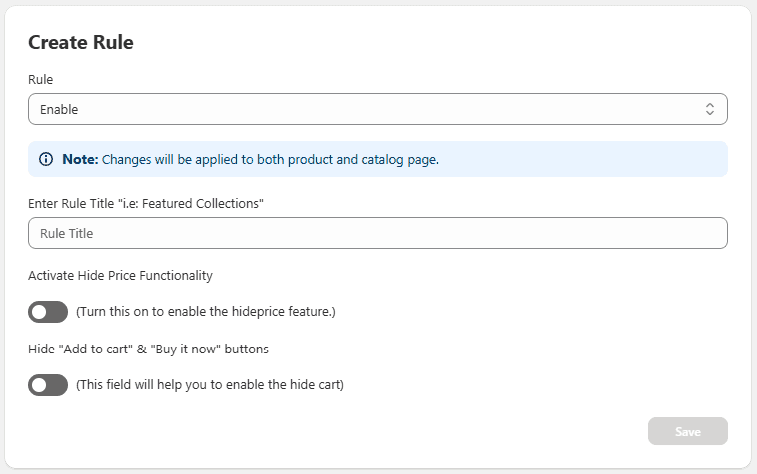
Steps to Create a Rule:
- Click Add Rule in the app dashboard.
- Configure the following:
- Rule Status – Enable or disable the rule
- Rule Title – Enter a name for the rule
- Hide Price – Enable to hide product prices
Choose how to replace hidden prices:
- Custom Text
- Image
- Custom URL
- Phone Number
- Add to Quote Form
- Save the rule.
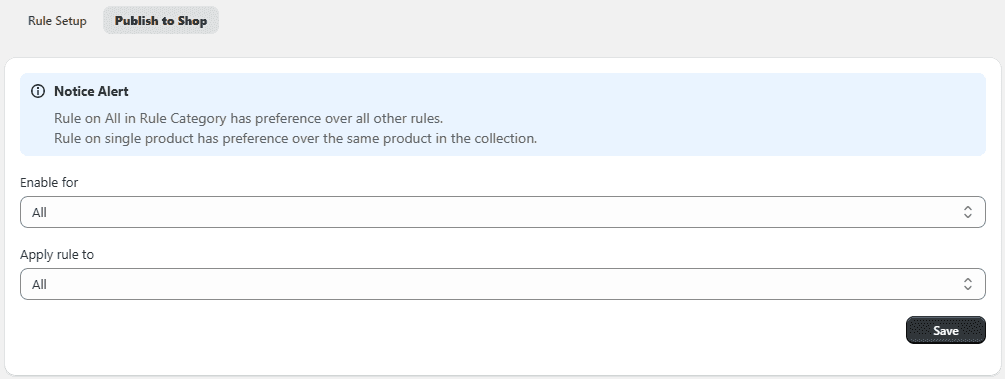
Publish to Shop
Once your rule configuration is complete, use the Apply rule to dropdown to choose where the rule should be applied:
- All
- Product
- Collection
After selecting the desired option, click Save and then Publish to Shop to make the rule active on your storefront.
Step 4. Check Enquiries
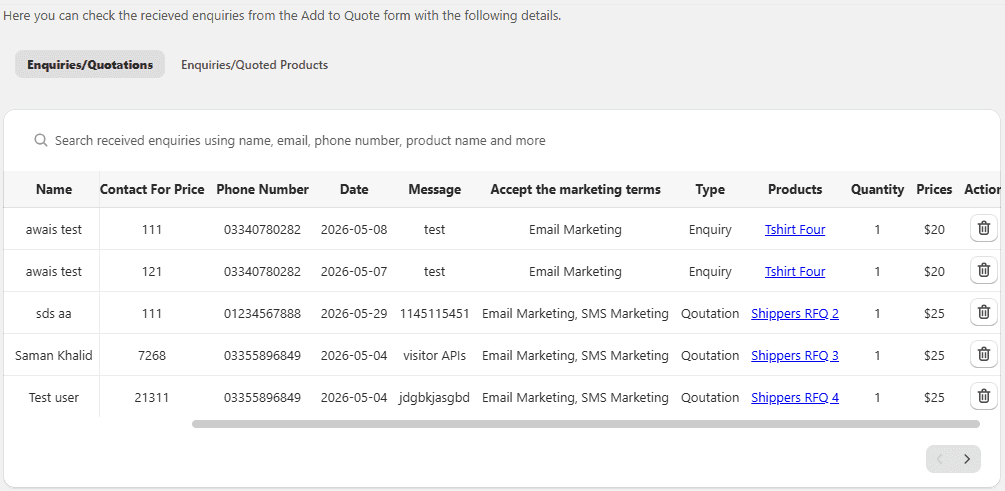
View and manage customer enquiries submitted through the app.
Steps:
Go to the Enquiry tab. View all submissions from:
- Add to Quote form
- Contact form
Step 5. Enable App Embed (Activate App)
To apply the app on your store, you must enable it in your theme.
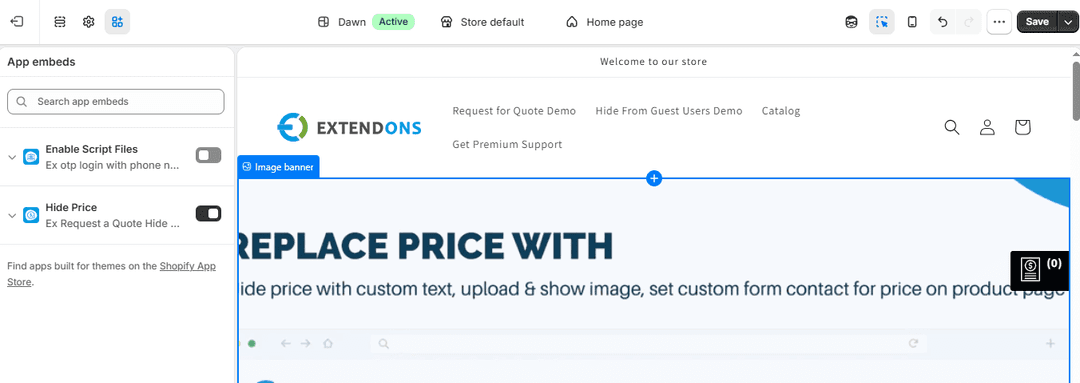
Steps to Enable App Embed
- Go to Shopify Admin.
- Navigate to Online Store → Themes.
- Click Customize.
- Open Theme Settings → App Embeds.
- Find Hide Price / Add to Quote App..
- Toggle it ON.
- Click Save.
Setup Complete
You have successfully:
- Configured app settings
- Customized contact/quote forms
- Created pricing rules
- Enabled the app on your theme
- Verified functionality on your store
Your store is now ready to handle enquiry-based pricing and improve customer interaction.