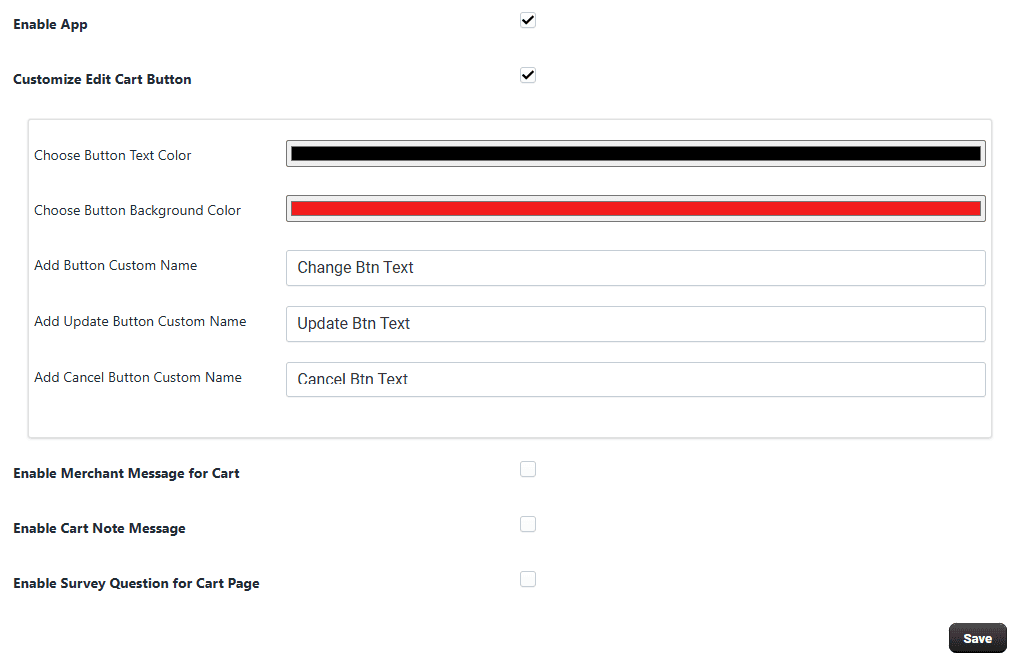
Step 1: Configure Settings
In this step, you can customize the cart edit button and popup actions.
Access Settings
- Open your Shopify Admin.
- Go to Apps.
- Select the Cart Edit Button App.
- Click on the Settings tab.
Enable App
Click this option to enable or disable the app functionality.
-
Enabled – Activates the cart edit button on your store
-
Disabled – App features will not be visible
-
Customize Edit Cart Button This section allows you to customize the cart popup button and its actions.
-
Choose Button Text Color Select the color of the button text to match your store design.
-
Choose Button Background Color Choose the background color of the button for better visibility and branding.
-
Add Button Custom Name Set a custom label for the cart edit button. Example: Edit Cart
-
Add Update Button Custom Name Customize the label for the update button in the cart popup. Example: Update
-
Add Cancel Button Custom Name Customize the label for the cancel button. Example: Cancel
-
Save Settings After making changes, click Save to apply your settings.