Step 1: Configure Cart on Collections
In this step, you can enable the app and control how the Add to Cart button behaves across your store.
Access Settings
- Go to Shopify Admin → Apps
- Open the Add to Cart on Collections App
- Click on Add to Cart on Collections
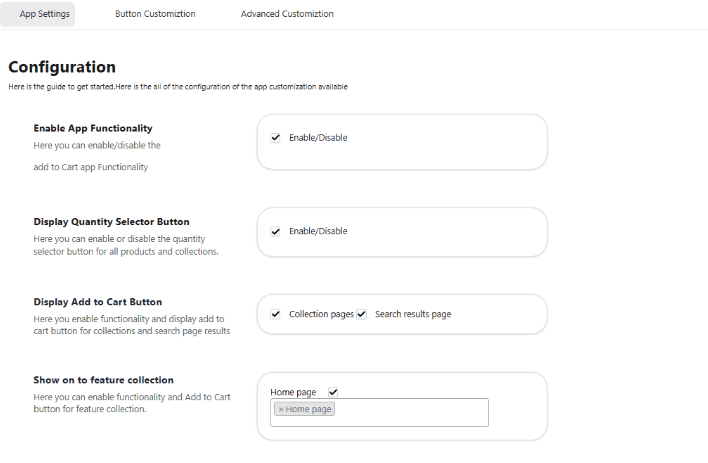
General Settings Enable App Functionality Turn ON to activate the app across your store.
-
Display Quantity Selector Button: Enable to show the quantity selector on product, collection, and other applicable pages.
-
Show Add to Cart on Search Results: Enable to display the Add to Cart button on products shown in search pages.
-
Show Add to Cart on Featured Collections: Enable to display the button on homepage featured collections.
-
Add to Cart Button Animation: Enable animations and control button placement to improve user engagement.
-
Display Sold Out Button: Show a Sold Out button for unavailable products. You can customize its text and background color.
-
Display Variants on Collection Pages: Enable to show product variants (e.g., size, color) along with the Add to Cart button.
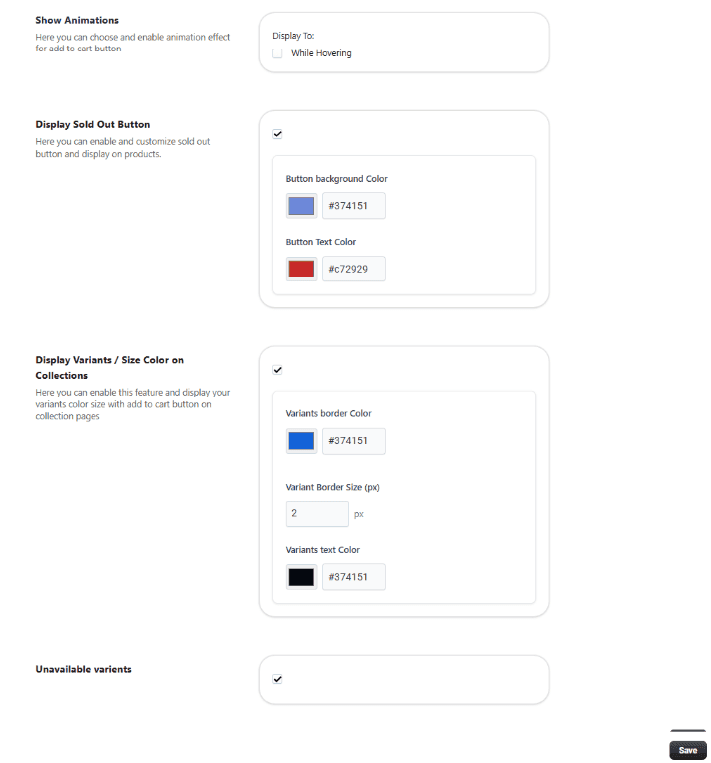
Save Settings Click Save to apply all configurations.