Step 2: Create Pricing Rules
Rules allow you to control pricing behavior for specific products or collections.
Create a Rule Go to the Rules section. Click Add Rule.
Rule Settings **Activate Rule Enable the rule to apply it on your store.
Rule Title Enter a name for the rule. Example: New Collection Pricing
Suggested Price Set a suggested price to guide customers.
Maximum Price Set the highest allowed price.
- Option to hide the maximum price label
Minimum Price Set the lowest allowed price.
- Option to hide the minimum price label
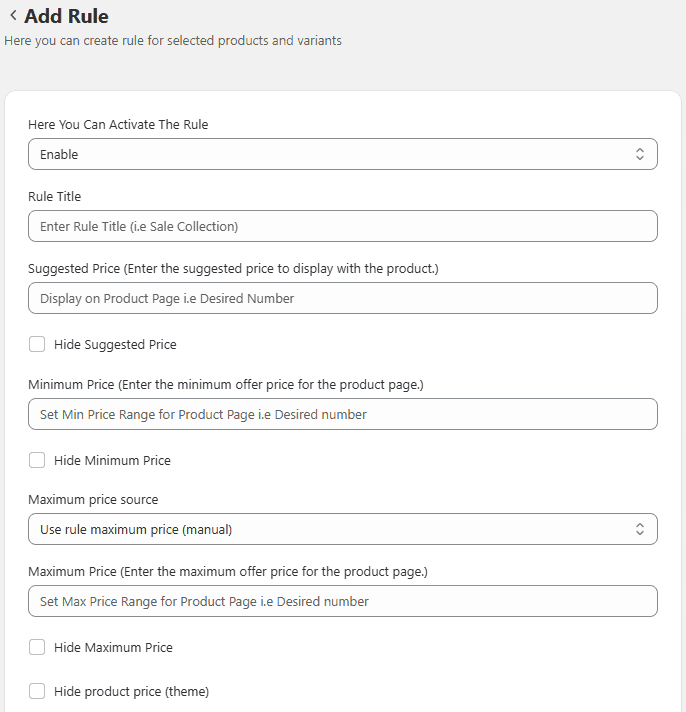
Price Input Label Customize the label for the pricing field. Example: Add Your Own Price
Default Pricing Options Choose how the price is displayed:
- Default Product Price
- Minimum Price
- No Default Price
Price Step Value Set price increments (e.g., 5, 10). Customers can only enter values in defined steps.
Exempt Charges
- Exempt Shipping Charges – Disable shipping fees (useful for digital products)
- Exempt Tax Charges – Disable tax if not required
Apply Rule Select where to apply the rule:
- Products
- Product Variants
- Collections
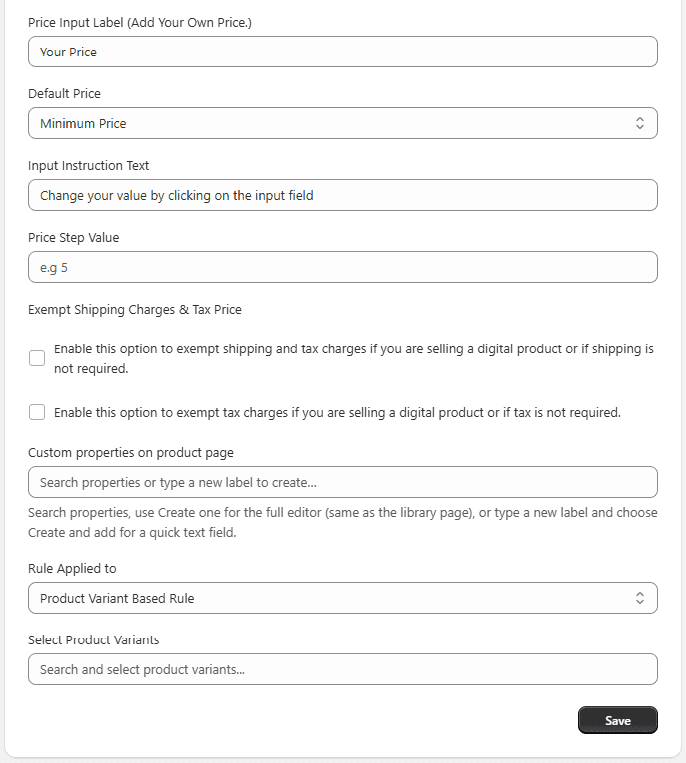
Save Rule Click Save to apply the rule.