Configure App – General Settings
The General Settings allow you to control how the “Make an Offer” or custom pricing feature appears on your store.
Access Settings
- Open your Shopify Admin.
- Go to Apps.
- Select the Pay What You Want App.
- Click on App Configuration.
- Configure the following options.
- Click Save after making changes.
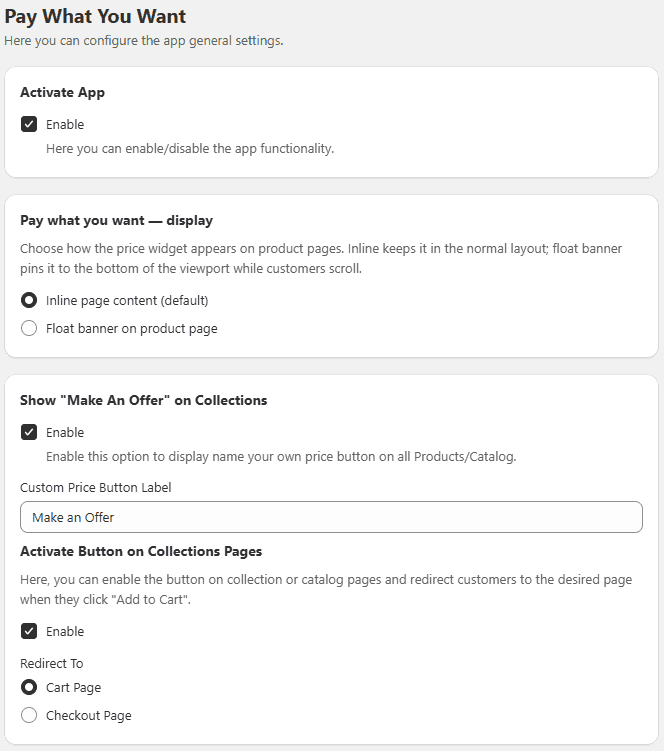
Activate App Enable or disable the app functionality.
Show “Make an Offer” on Collections Enable to display the Name Your Price button on collection/catalog pages.
Activate Button on Collection Pages Enable the button on collection pages and choose where customers are redirected:
- Cart Page
- Checkout Page
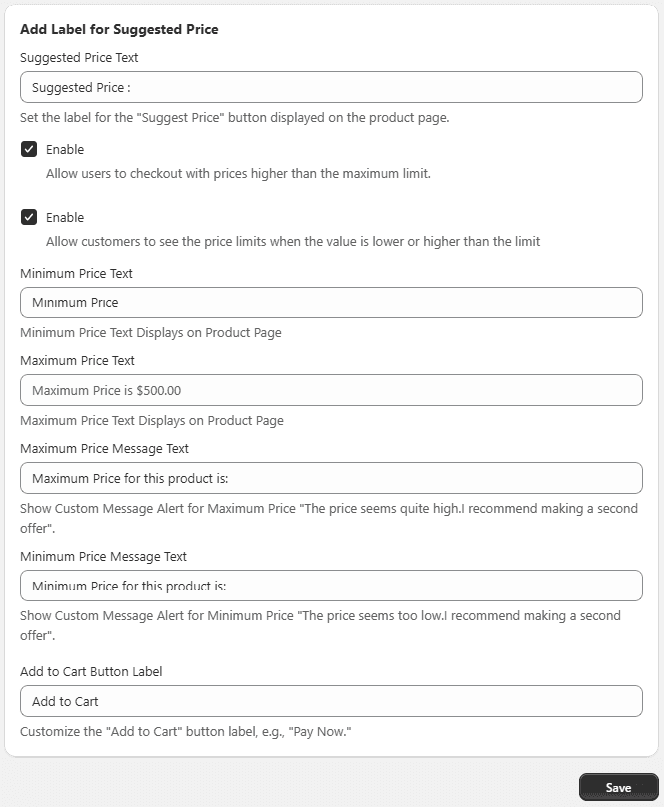
Suggested Price Label Set a custom label for the suggested price shown on product pages.
Allow Higher Price Checkout Allow customers to enter and checkout with a price higher than the maximum limit.
Show Price Limits Enable to display messages when entered price is below minimum or above maximum limits.
Custom Price Label Add a custom label for minimum or custom pricing fields on the product page.
Custom Messages
- Maximum Price Message Example: The price seems quite high. Please make another offer.
- Minimum Price Message Example: The price is too low. Please increase your offer.
Customize Add to Cart Button Change the label of the button. Example: Pay Now