Infinite Scroll & Load More App – User Guide
This guide will help you configure and activate the app on your Shopify store. Use these options to control how products are loaded and displayed on your collection pages.
Step 1: Configure App – General Settings
The General Settings section allows you to control how products load on your collection pages and how the loading experience appears to customers.
Access General Settings
- Open your Shopify Admin.
- Go to Apps.
- Open the Infinite Scroll / Load More App.
- Click on App Configuration.
- Configure the following options.
- Click Save after making changes.
Enable App – Turn ON to activate the app; turn OFF to use Shopify’s default pagination. Always make sure the app is enabled to use its features.
Loading Type: Click the dropdown menu to select your preferred method for displaying additional products:
- Infinite Scroll: Automatically loads more products as the user scrolls down the page.
- Load More Button: Requires the user to manually click a button to view more products.
Animation Type The Animation Type option allows you to display visual animation effects when new products appear on the page.
Loading Graphic Status The Loading Graphic displays an icon or visual indicator while products are loading.
Uploading a Graphic You can upload a custom loading graphic in SVG format.
SVG files are recommended because they:
- Load quickly
- Maintain high quality on all screen sizes
- Are optimized for web performance
Loading Products Text: Enter the text you wish to display while products are loading. Note: This text will only be visible if the "Loading Graphic Status" is disabled.
Product End Message: Input the message you want your customers to see once they have reached the end of the product list.
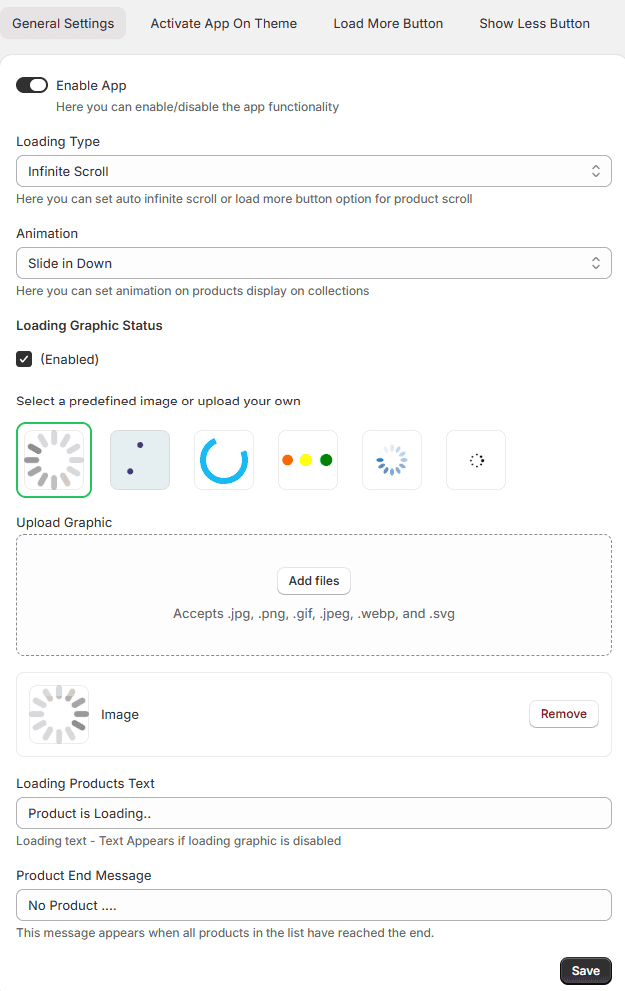
Save Changes: Click the Save button at the bottom right to apply your new settings to your store.
Step 2: Customize the Load More Button
If you select Load More Button as the loading type, you can customize its design to match your store branding. The Load More Button appears at the bottom of the collection page and allows customers to load additional products without refreshing the page
Customize Load More Button
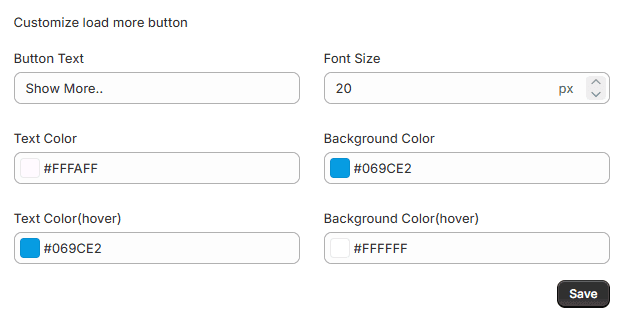
You can modify the visual appearance of the button including:
- Button Label – Change the text displayed on the button (example: Load More Products).
- Text Color – Select the color for the button text.
- Background Color – Set the button background color.
- Font Style – Choose a font that matches your store theme.
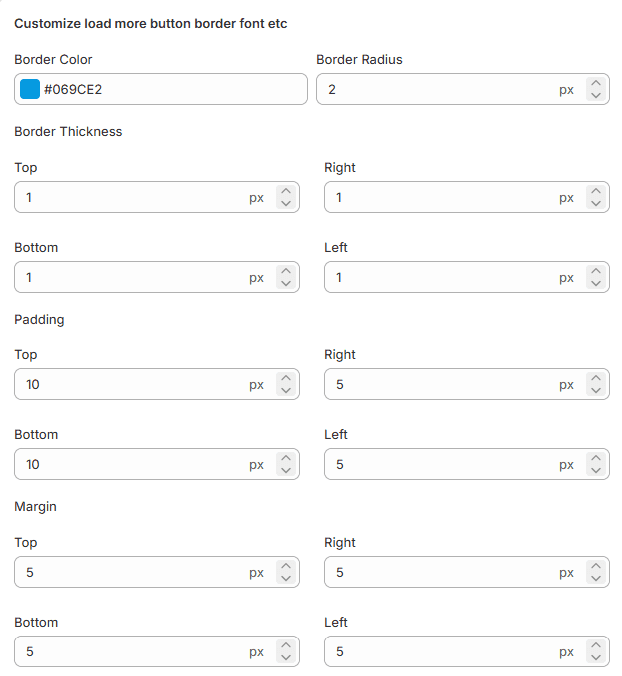
Border Color Set the color of the button border to make it stand out from surrounding elements.
Border Thickness Adjust the border width for each side of the button: Top, Left, Right, Bottom.
Button Padding Control the space inside the button between the text and border. Padding can be adjusted for Top, Left, Right, Bottom.
Margin Adjust the space outside the button to maintain proper spacing from other elements (Top, Left, Right, Bottom).
Step 3: Customize the Show Less Button
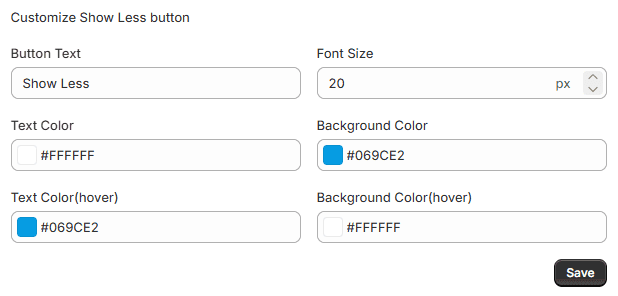
The Show Less Button appears when additional products have already been loaded on the collection page. Customers can click this button to collapse the extra products and return to the original product view.
This section allows you to modify:
- Button text
- Font style
- Border style
- Background color
- Text color
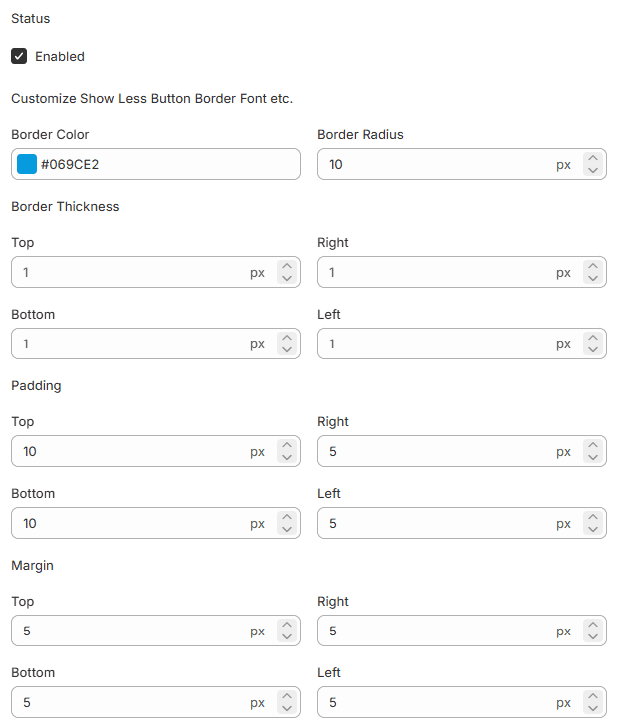
Border Color Set the border color of the Show Less button.
Border Radius Control how rounded the button corners appear.
Border Thickness Adjust the border width for Top, Left, Right, and Bottom.
Button Padding Set the inner spacing between the button text and border.
Margin Adjust the outer spacing around the button for proper alignment on the page
Step 4: Customize the Back to Top Button
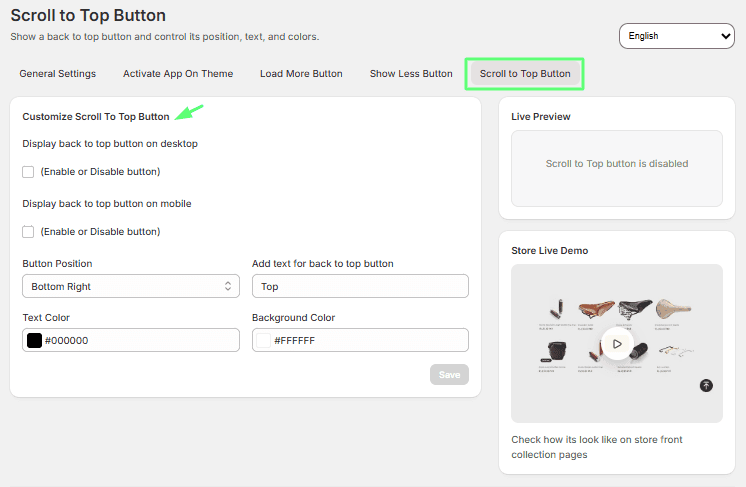
The Back to Top Button helps customers quickly return to the top of the page after scrolling through many products.
Enable / Disable Back to Top Button You can enable or disable the button depending on your store preferences. When enabled, the button will appear when customers scroll down the page.
Modify the button label and text color to match your store design.
Button Position Choose where the button appears on the page: Bottom Left, Bottom Right, or Top.
Button Color Customize the text color and background color to match your brand while keeping the button visible.
Step 5: Activate App on Theme (Enable App Embeds)
After configuring the app settings, you must enable the App Embed within your Shopify theme.
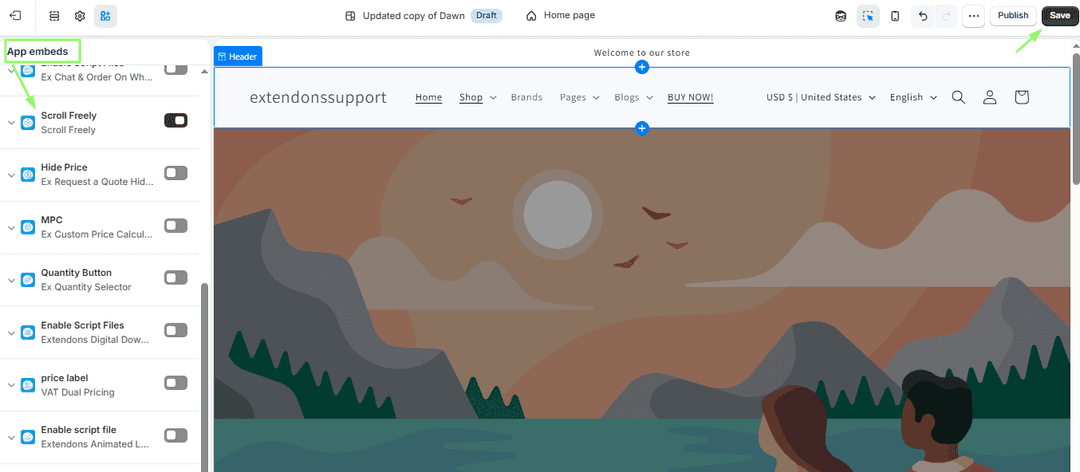
Steps to Enable App Embed
- Open Shopify Admin.
- Click Online Store.
- Select Themes.
- Click Customize on your active theme.
- In the theme editor, open App Embeds.
- Find the Infinite Scroll / Load More App.
- Toggle the app embed ON.
- Click Save.
Once enabled, the app will start working on your collection pages.
Setup Complete
After completing the steps above:
- Infinite Scroll or Load More functionality will be active.
- Customers can load additional products without page refresh.
- Navigation and browsing experience will be improved.
Your store is now ready to provide a smoother and more engaging product browsing experience.